

- Built-in games. EdenLive runs one of seven games for you. Your app steers it with keys and mouse look.
- Your own game. Your app renders a game in the browser and streams it as video. EdenLive generates the world from it, and your app keeps the controls, physics, and rules.
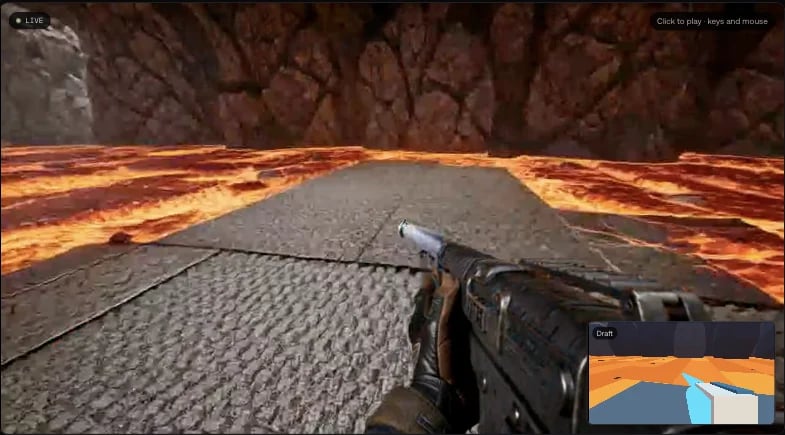
An EdenLive example app: the generated world, with the draft it was made from in the corner.
Installation and setup
Install the published typed SDK in your browser app. The snippets below build on one connectedEdenLiveModel instance; provide your own video elements, token route, and game renderer.
The screenshots show an example app whose starter template is not yet publicly available. You can
implement the same integration with the SDK; there is no EdenLive create-reactor-app template to
scaffold yet.
- npm
- pnpm
How EdenLive works
EdenLive reads a draft video: a built-in game, or your own. A reference image and a text prompt set how the world looks. The model sends two video tracks back:
After every command and every generated chunk, the model sends a
state_update message with the
whole session state. Until you start a world, both tracks show the staged reference image.
Authentication
Issue a session token on your server. The browser’sgetToken() helper calls that server route. Do
not put an rk_ API key in browser code. See Authentication for the token
exchange and limits.
Part 1: Play a built-in game
1. Connect and show the tracks
Connect, then showmain_video large and draft_video small. Give both <video> elements the
muted, autoplay, and playsinline attributes.
ready status before sending commands.
2. Choose a game
EdenLive ships seven games. Each has its own goal and controls: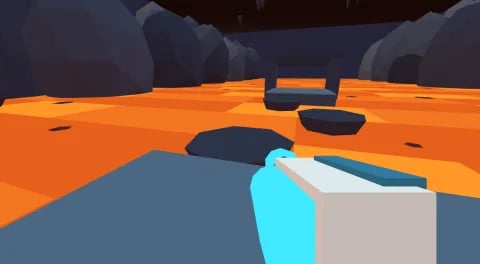
Cryo Crossing
freeze. Freeze a path of stones across a volcanic cavern.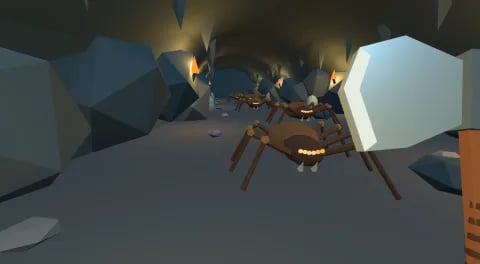
Spider Hollow
spiders. Clear a torch-lit cave of spiders with an axe.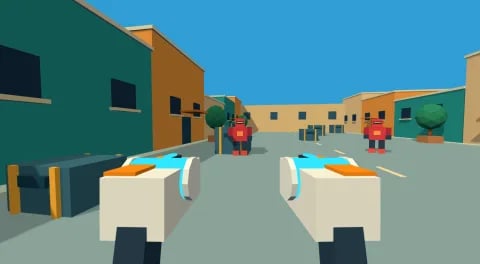
Pulse Skirmish
tracer. A dual-pistol fight against robots in a sunlit street.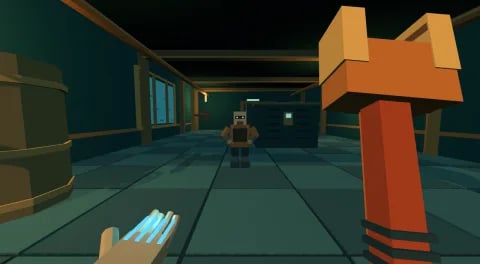
Deepwater Shock
bioshock. A wrench and electric bolts in a flooded machine room.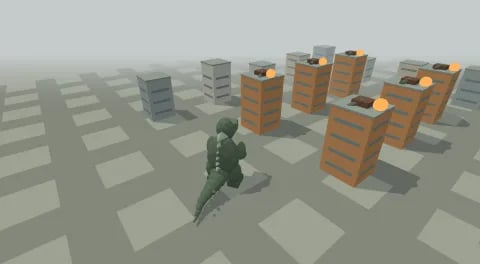
Kaiju Rampage
godzilla. A giant monster against the towers of a miniature city.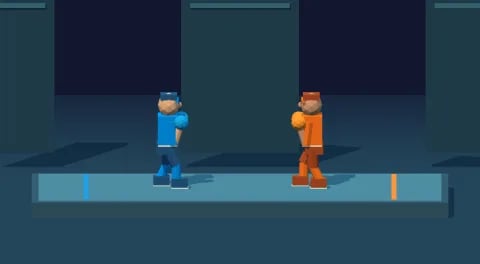
Arcade Duel
arcadeduel. Two fighters, one arena, one round.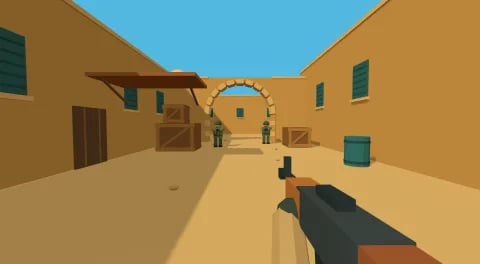
Desert Crossfire
dust2. Rifle combat through a desert courtyard.select_game stages the game’s cover as the reference image and its prompt as the scene prompt:
3. Start the world
main_video and draft_video shortly after. start always makes a new
world. Calling it again replaces the current one.
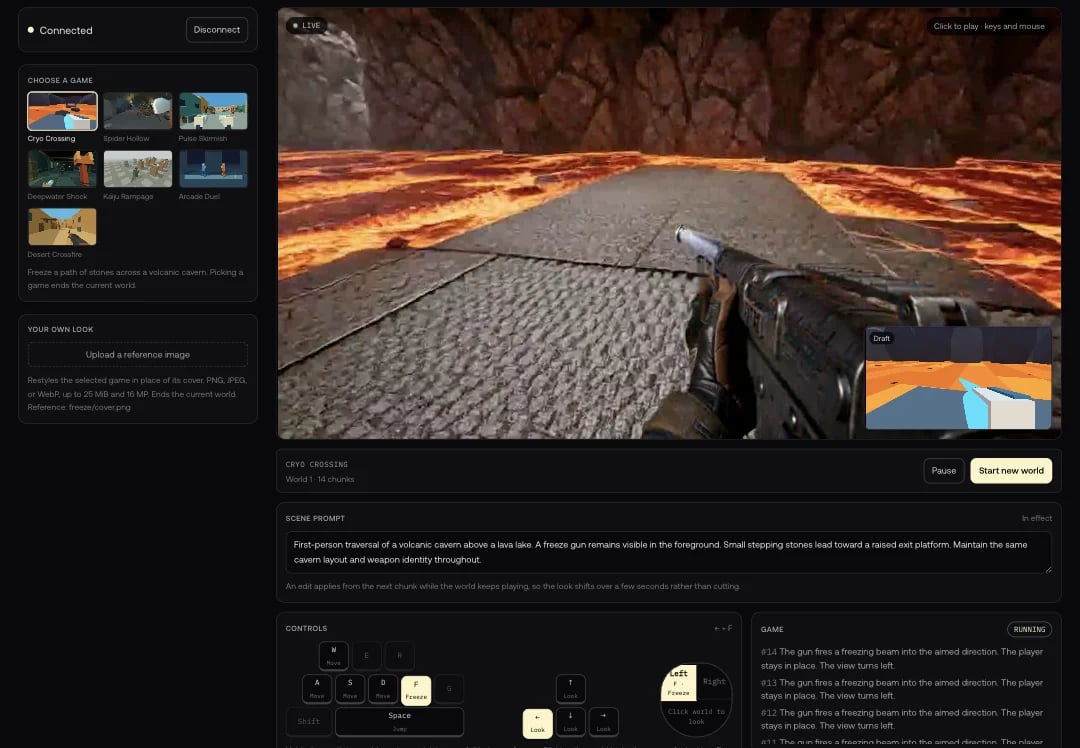
The example app running Cryo Crossing: the game picker, the generated world with its draft, the prompt, the controls, and the game status.
4. Steer with keys and mouse look
Send the full set of held keys each time it changes. A key tapped and released between two frames can be missed, so hold keys long enough to see the effect.set_look holds a turn and tilt rate, each from -1 to 1, until you replace it. Send 0, 0 when
the mouse stops. Keep one setLook call in flight at a time and send the latest value next.
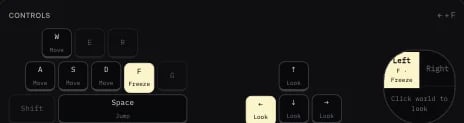
The example app's controls light up the keys you hold. Click the world to look with the mouse.
5. Show the game’s status
Eachstate_update carries the game’s own status: its state, the player’s health, what just
happened, and the result card when the game ends. Add an element with id="status" to your page and
provide a showResult(outcome) function to display the result card.
events repeats in every state_update until the next chunk, so add it to a log once for each new
chunks value. When the game ends, the world pauses. Call start for a new world.
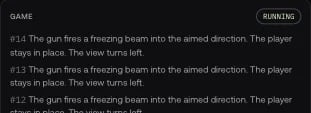
Game status: the game's state and what happened in each chunk.
6. Change the look, pause, and restart
Change the prompt at any time. The world keeps its history, so the look changes over a few seconds:setPaused. To change the game or the reference image, pause
first, because both end the world. Then call start again.
Part 2: Stream your own game
Build any small 3D game in the browser, draw it to a canvas, and stream that canvas to EdenLive. The game can be plain: colored boxes, simple trees, and a capsule for the player. EdenLive draws the detail from your reference image and prompt.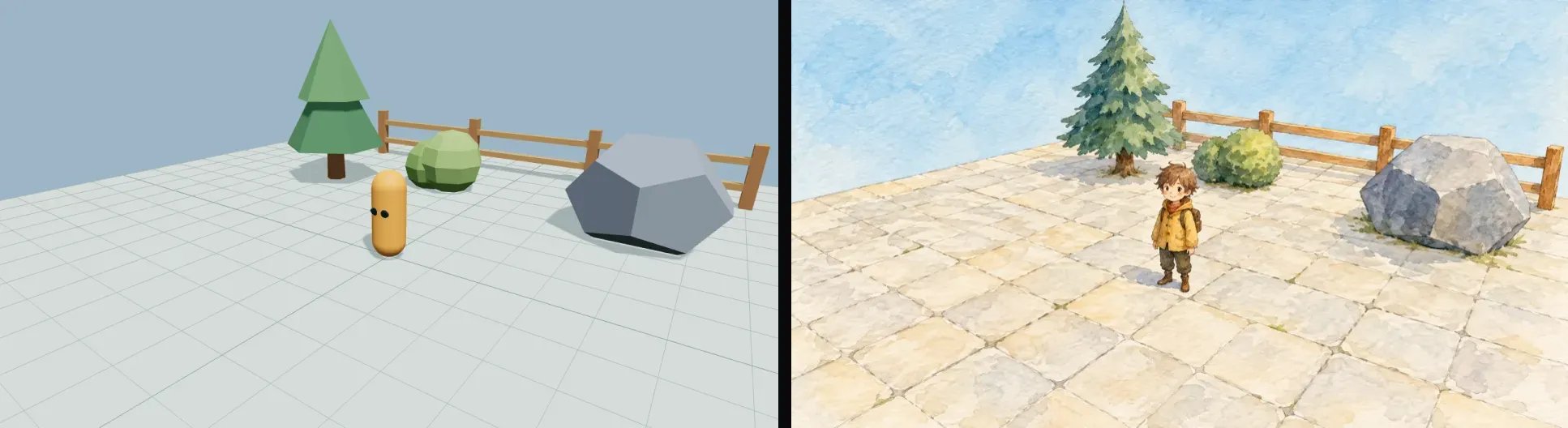
A draft made of simple shapes (left) and the appearance reference for it (right).
1. Draft a game that reads well
- Keep shapes simple and distinct. Give each object a clear silhouette and its own color. The model supplies the materials and lighting.
- Make one complete round. A clear goal, a way to win, a way to lose, and a restart.
- Use a steady camera. Smooth third-person or first-person movement works best.
- Render at 1280 × 704. EdenLive scales source frames to fill this size and crops the center. A canvas with the same dimensions preserves your framing.
- Keep text out of the canvas. Draw the score, health, and menus in your page, over the video.
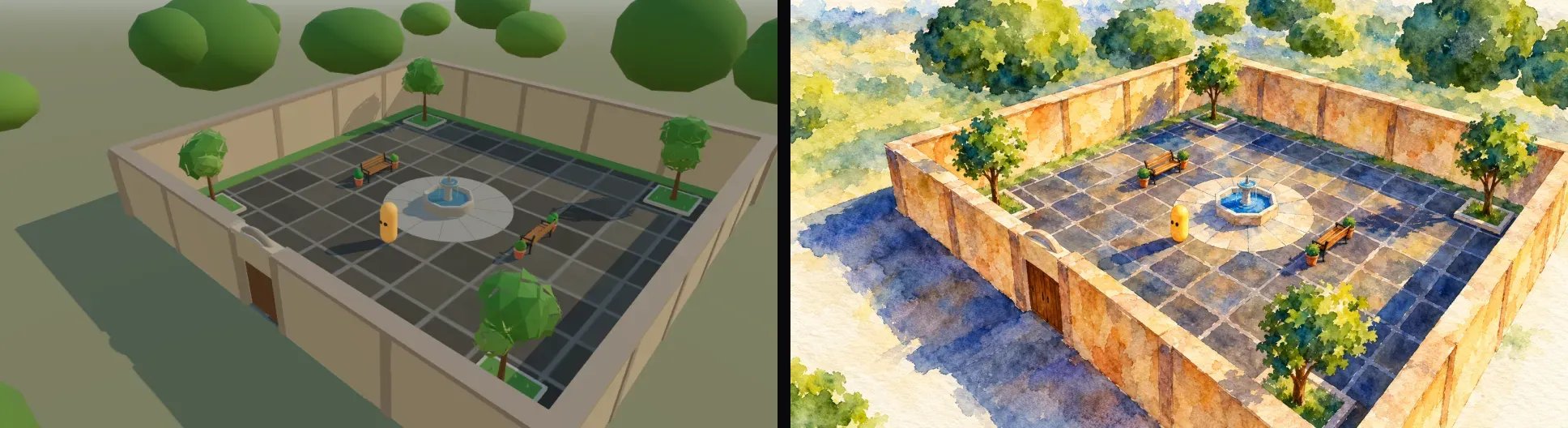
A walled courtyard drafted from primitives, and the watercolor look it becomes.
2. Stream the canvas
Publish the canvas assource_video and switch the source to client. Keep the frame rate steady,
between 10 and 60 fps. EdenLive plays the generated video at the rate you send.
Run steps 2–4 in order in one async setup flow, and stop if a command is refused. If you are
continuing from Part 1, disable its controls and drain the last mouse-look command before switching
sources. Pause before replacing the reference; otherwise setImage is refused and the old reference
remains staged.
3. Set the look
Capture your game’s opening frame, restyle it in an image tool, and upload the result as the reference. Keep the camera angle and object positions of the frame. Then describe the scene in the prompt.4. Start and play
setKeys or setLook in this mode. When your game pauses, call setPaused too, so the world
pauses with it.
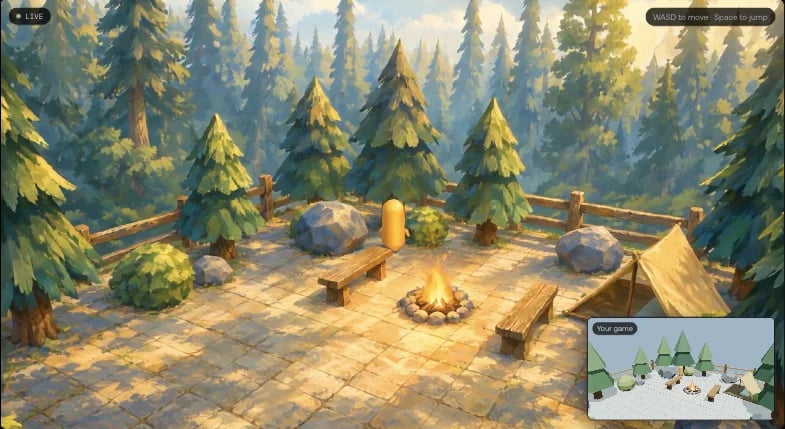
Your own game in the example app: the generated world, with your game's canvas in the corner.
Handle refusals
When EdenLive refuses a command, the call resolvesundefined and only your client is told. The
error event carries the model’s code, such as pause_required: